How to Fix Battery Draining Fast on Your Laptop Quickly
You charge your laptop to 100%, unplug it, and expect a few solid hours of work or streaming. Then the battery suddenly drops to 20% before you’ve even finished a meeting or watched a full movie. That’s usually when people start searching for how to fix battery draining fast on your laptop because something clearly doesn’t feel right.
Fast battery drain can happen for a lot of reasons—background apps eating power, overheating issues, wrong charger usage, outdated battery settings, or simply a worn-out battery struggling to hold charge. I’ve seen laptops lose half their battery in under an hour just because a few hidden settings were working against the system.
Ignoring the problem often makes things worse. Constant deep draining can shorten battery lifespan, reduce performance, and eventually leave you stuck hunting for a charger everywhere you go. In some cases, excessive heat from battery strain can even damage internal components over time.
I’ll walk you through the practical fixes that actually help—from simple power-setting changes to checking battery health and stopping apps that quietly drain power in the background. You’ll also learn how to improve battery life without wasting money on unnecessary replacements.
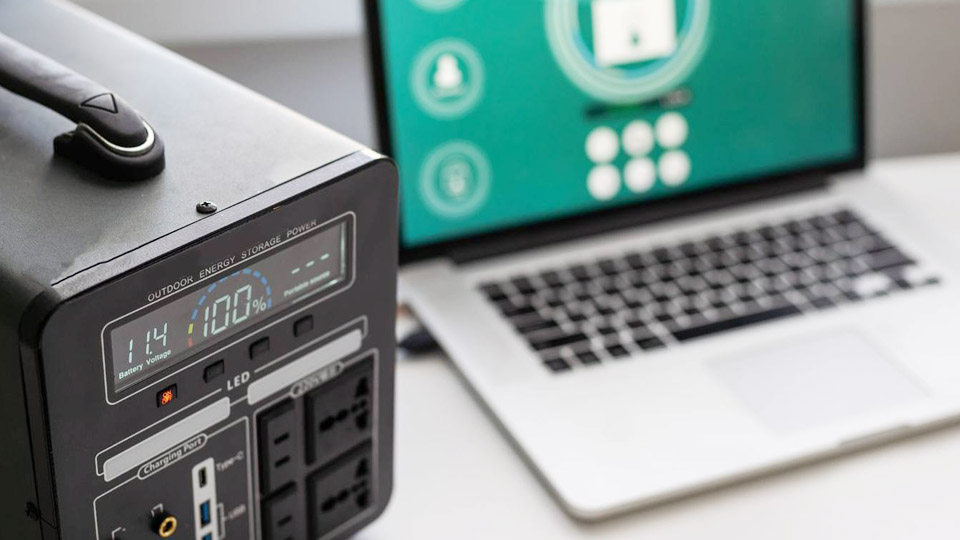
Image by pcmacgicians
Why Your Laptop Battery Drains So Quickly
Laptop batteries, almost always lithium-ion (Li-ion) or lithium-polymer (LiPo) packs, lose capacity over time due to chemical degradation. A new battery might give you 8–12 hours, but after 300–500 charge cycles, that often drops significantly.
Common triggers include high screen brightness, background processes, outdated drivers, power-hungry apps, heat buildup, and a degrading cell pack. Sometimes the battery itself is fine, but the system is wasting power. Other times, the cells have simply reached the end of their useful life.
Real scenario: A client brought in a two-year-old Dell that went from 6–7 hours down to 90 minutes. After running diagnostics, we found excessive background sync from cloud apps and a battery holding only 65% of original capacity. Simple tweaks plus a calibration restored usable runtime.
Diagnose the Problem First
Before random fixes, gather data. On Windows, generate a detailed battery report:
- Open Command Prompt as administrator.
- Type
powercfg /batteryreportand press Enter. - Find the HTML report in your user directory and open it in a browser.
This report shows design capacity vs. full charge capacity, cycle count, and usage history. If full charge capacity is below 70–80% of design, the battery is wearing out and may need replacement soon.
Use Task Manager (Ctrl + Shift + Esc) to sort processes by CPU or power usage. Resource Monitor or built-in battery settings in Windows 11 also highlight power hogs.
Quick Software Fixes That Deliver Immediate Results
Lower Screen Brightness and Refresh Rate
The display is one of the biggest power consumers. Drop brightness to 40–60% indoors. On many laptops, you can also lower the refresh rate from 120Hz or 144Hz to 60Hz in display settings. This alone can add 1–2 hours.
Switch to Battery Saver or Balanced Power Plan
Go to Settings > System > Power & battery (Windows 11). Set Power mode to Best power efficiency or Balanced. Edit your power plan to turn off the display after 3–5 minutes and sleep the laptop after 10–15 minutes when unplugged.
Disable Keyboard Backlight and Unnecessary Peripherals
Keyboard lights look cool but drain power steadily. Turn them off when not needed. Unplug USB devices, external drives, or mice when running on battery.
Manage Background Apps and Startup Programs
Many apps (OneDrive, Dropbox, antivirus, browsers with many tabs) run constantly. In Task Manager > Startup apps, disable what you don’t need immediately. In Settings > Apps > Installed apps, review permissions for background running.
Update Drivers and Windows
Outdated graphics, chipset, and battery drivers cause inefficient power management. Visit your laptop manufacturer’s support site (Dell, HP, Lenovo, etc.) and download the latest versions. Windows Update often includes power-related fixes.
Check for Malware and Bloatware
Run a full scan with Windows Defender or a reputable tool. Manufacturer bloatware frequently runs unnecessary services.
Advanced Troubleshooting Steps
Calibrate Your Battery
Modern Li-ion batteries use a fuel gauge that can lose accuracy. Calibration helps the system report true remaining capacity.
Basic manual process:
- Charge to 100% and keep plugged in for another 1–2 hours.
- Unplug and use normally until the laptop shuts down from low battery (do not force shutdown).
- Leave it off for 4–5 hours.
- Charge uninterrupted back to 100%.
Do this every 2–3 months or when the reported percentage seems inaccurate. Some manufacturers provide dedicated calibration tools in their support software.
Reset Power Settings and Reinstall Battery Drivers
In Device Manager, expand Batteries, right-click Microsoft ACPI-Compliant Control Method Battery, and uninstall it. Restart the laptop—it will reinstall. Also, reset power plans to default via Command Prompt: powercfg -restoredefaultschemes.
Address Heat and Ventilation
Heat accelerates degradation. Clean vents and fans with compressed air. Use on a hard surface, not a bed or couch. Consider a cooling pad for heavy workloads.
Check Charging Behavior
If the battery drains while plugged in, test with a different charger. Use the original or correctly rated adapter (wattage and voltage matter). A mismatched or failing charger can cause issues.
Understanding Laptop Battery Types and Chemistry
Most laptops use Li-ion or LiPo batteries. These offer high energy density in a lightweight package compared to older nickel-based chemistries.
Key Specs to Know:
- Voltage: Typically 11.1V, 14.4V, or 15.2V packs (multiple cells in series).
- Capacity: Measured in Wh (Watt-hours) or mAh. Higher Wh = longer potential runtime.
- Cycle Life: Expect 300–500 full cycles before noticeable degradation. Partial discharges are gentler.
LiPo variants are often flatter and molded to fit slim chassis but follow similar care rules.
Comparison of Battery Technologies (for broader context):
| Type | Pros | Cons | Best For | Typical Lifespan |
|---|---|---|---|---|
| Li-ion/LiPo | Lightweight, high energy density, low self-discharge | Degrades over time & with heat, more expensive | Laptops, portables | 300-500 cycles |
| Lead-Acid | Cheap, robust | Heavy, lower efficiency, maintenance needed | Cars, solar, UPS | 200-400 cycles |
| AGM/Gel | Spill-proof, vibration resistant | Heavier than lithium | Automotive, deep cycle | 400-700 cycles |
| LiFePO4 | Very safe, long cycle life | Bulkier, higher upfront cost | Solar, EVs, heavy use | 2000+ cycles |
For laptops, stick with manufacturer-matched Li-ion packs. Third-party batteries can work but may have lower capacity or poorer BMS (Battery Management System) protection.
Hardware Fixes and When to Replace the Battery
If software tweaks don’t help and the battery report shows low capacity:
- Inspect for physical swelling (common failure sign—do not use swollen batteries as they pose safety risks).
- For user-replaceable models, a new OEM or quality aftermarket battery costs $50–150 depending on the laptop.
- Internal batteries require careful disassembly—watch model-specific guides and use proper tools to avoid damaging connectors.
Pro Tip: Always disconnect power and discharge residual power by holding the power button for 30–60 seconds before working inside.
Broader Battery Lessons from Automotive, Solar, and Off-Grid Use
Laptop batteries share principles with other systems I’ve worked on. Heat is the enemy across lead-acid, AGM, gel, and lithium. Proper voltage charging prevents damage—never use a charger outside the recommended range for the chemistry.
In solar setups, I pair LiFePO4 for longevity with proper charge controllers. For cars and motorcycles, AGM batteries handle deep discharges better than flooded lead-acid. The same storage rule applies everywhere: keep batteries at 40–60% charge in a cool, dry place if not in use for weeks.
Common Mistakes I See:
- Leaving the laptop at 100% constantly (modern systems mitigate this, but it’s still not ideal long-term).
- Storing at 0% or 100% for extended periods.
- Ignoring dust buildup, which causes thermal throttling and higher power draw.
- Using high-performance mode on battery for everything.
Maintenance Routine for Maximum Lifespan
- Charge between 20–80% when possible for daily use.
- Perform a full calibration cycle every few months.
- Keep the laptop cool (ideal operating temp 15–35°C / 59–95°F).
- Update BIOS and drivers regularly.
- Use battery saver features and monitor with tools like the built-in report.
- For long storage: Charge to ~50%, power off completely, and check every 2–3 months.
Safety Considerations
Lithium batteries can overheat, swell, or in rare cases, pose fire risks if damaged or improperly charged. Never puncture, expose to extreme heat, or use incompatible chargers. Dispose of old batteries at proper recycling centers—never in regular trash.
Real-World Examples Across Applications
- Daily Office Use: Brightness at 50%, Balanced mode, and closing email clients when not needed easily doubles runtime.
- Power Tools/Field Work: Technicians using rugged laptops benefit from LiFePO4 external packs for extended runtime.
- Backup/UPS Scenarios: Similar principles apply—proper float charging extends life.
- EV and Solar Enthusiasts: Understanding BMS and cell balancing helps when scaling up to larger systems.
Taking Control of Your Laptop’s Battery Life
You’ve now got the diagnostic tools, immediate fixes, calibration methods, and long-term habits that separate casual users from those who get years of reliable service from their batteries.
Whether you’re troubleshooting a draining laptop today or planning maintenance for a solar setup tomorrow, the fundamentals remain the same: monitor, optimize, and respect the chemistry.
Invest in a quality multimeter or battery tester. Spotting a cell imbalance or voltage sag early can save you from sudden failures in the field.
FAQ
How long should a laptop battery last on a full charge?
It varies by model and usage, but a healthy modern laptop typically delivers 6–12 hours for light work. Gaming or video editing can drop that to 2–4 hours. Check your battery report for personalized expectations.
Is it bad to leave my laptop plugged in all the time?
Modern laptops with smart charging manage this well, often stopping at 80–100% as needed. For maximum longevity, avoid constant 100% if you can, and occasionally run on battery.
When should I replace my laptop battery?
Replace when capacity drops below 70–80% of original, or if runtime is unacceptably short despite optimizations. Swelling or unusual heat are urgent signs.
Does calibrating the battery really help?
Yes—especially if the reported percentage jumps around or shuts down earlier than expected. It syncs the fuel gauge with actual capacity.
Can software updates fix battery drain?
Absolutely. Many updates optimize power management, fix driver bugs, and improve background efficiency. Keep everything current.