How to Troubleshoot Laptop Battery Not Charging
You plug in your laptop, see the charging cable connected, and expect the battery percentage to start climbing. Instead, it stays stuck at the same number—or worse, continues dropping.
Few things are more frustrating than needing your laptop for work, school, or a meeting and realizing the battery isn’t charging at all. That’s when you start searching for how to troubleshoot laptop battery not charging problems before the situation gets worse.
A laptop that won’t charge doesn’t always mean the battery is dead. The issue could be as simple as a faulty charger, a loose connection, incorrect power settings, or a software glitch. In other cases, battery wear, overheating, or hardware failures may be preventing the system from charging properly.
Finding the real cause quickly matters because it can save you from buying an expensive replacement you don’t actually need. It also helps protect battery health, avoid unexpected shutdowns, and keep your laptop performing reliably when you depend on it most.
I’ll walk you through the most common reasons a laptop battery stops charging and the practical steps to diagnose each one. From simple checks to more advanced troubleshooting, you’ll learn how to identify the problem and get your laptop charging again with confidence.

Image by hellotuktuk
Why Laptop Batteries Fail to Charge (And Why It Matters Beyond Laptops)
Laptop batteries are almost always lithium-ion (Li-ion) or lithium-polymer (LiPo) packs these days. These are compact, high-energy-density cells that deliver reliable power for hours but come with their own quirks.
Common triggers for “plugged in, not charging” include:
- Faulty or incompatible charger/adapter delivering wrong voltage or current.
- Degraded battery cells with high internal resistance.
- Dirty, loose, or damaged charging ports.
- Software/driver glitches, especially after Windows updates.
- Overheating, which triggers protective circuits.
- Power management settings or corrupted Embedded Controller (EC) firmware.
These same issues plague other batteries. A car battery that won’t charge often stems from a bad alternator (like a faulty charger), sulfation (degradation), or poor connections.
Solar deep-cycle batteries suffer from incorrect charge controllers or temperature extremes. The troubleshooting mindset transfers directly.
Ignoring it leads to sudden shutdowns, reduced lifespan, and in rare cases safety risks like swelling or overheating. Catching problems early saves money and hassle.
Step-by-Step Troubleshooting for Laptop Battery Not Charging
Start simple and work methodically. Most issues resolve in the first few steps.
1. Verify the Basics: Connections and Power Source
It sounds obvious, but check everything physical first. Wiggle the charger plug in the laptop port—does the connection feel loose? Inspect the cable for kinks, fraying, or heat damage along its length. Test the wall outlet with another device.
Try a different outlet or power strip. For USB-C laptops, ensure you’re using a charging-capable port (not all USB-C ports support power delivery). Use the original charger or one with matching voltage (usually 19-20V) and sufficient wattage. A 65W charger on a 90W+ gaming laptop often fails under load.
Real-world tip: In my experience, cheap third-party chargers are a top culprit. They might show a charging icon but deliver unstable power, confusing the battery management system (BMS).
2. Perform a Hard Reset / EC Reset
This discharges residual power and resets the charging circuit—effective for many “plugged in, not charging” cases.
- Shut down the laptop completely.
- Unplug the charger.
- If removable, take out the battery (many modern ones aren’t).
- Hold the power button for 30-60 seconds.
- Reconnect everything (battery first if applicable) and try charging.
For some brands like ASUS or Dell, there are specific EC or RTC resets involving pinhole buttons or key combinations.
3. Check and Reinstall Battery Drivers
Software glitches are surprisingly common, especially post-update.
- Right-click Start > Device Manager.
- Expand “Batteries.”
- Right-click “Microsoft ACPI-Compliant Control Method Battery” and “Microsoft AC Adapter” (or similar) > Uninstall device.
- Restart the laptop. Windows should reinstall them automatically.
Update your BIOS and chipset drivers from the manufacturer’s site too. I’ve seen Windows updates break charging until a BIOS refresh.
4. Run Built-in Diagnostics
Most laptops have hardware tests:
- HP: HP Battery Check or Support Assistant.
- Dell: F12 at boot for diagnostics.
- Lenovo: Lenovo Vantage or Novo button.
- General: Check BIOS (usually F2/Del at startup) for battery status and AC adapter recognition.
If the BIOS doesn’t see the adapter, it’s likely hardware (charger, port, or motherboard).
5. Inspect for Overheating and Clean the System
Heat is the enemy of lithium batteries. If the laptop throttles or feels hot, clean vents, reapply thermal paste if you’re comfortable opening it, and ensure good airflow. Let it cool completely before charging attempts.
6. Test the Battery Health
Use tools like:
- Windows Command Prompt:
powercfg /batteryreportfor a detailed HTML report on capacity and cycles. - Manufacturer software showing design vs. current capacity.
If capacity is below 60-70% of original, replacement time is near. Batteries typically last 300-500 cycles before noticeable degradation.
7. Advanced Checks: Port Cleaning and Hardware Inspection
Gently clean the charging port with compressed air and a soft brush or plastic pick (no metal). For internal issues, a technician might reseat connections or check the charging circuit.
If nothing works, the battery, charger, or DC jack/motherboard could be faulty. Replacement batteries are often affordable on sites like the manufacturer’s or reputable suppliers.
Understanding Battery Types: Lessons from Laptops to Cars, Solar, and Beyond
Laptop troubleshooting shines a light on broader battery knowledge. Here’s a practical breakdown:
Lithium-Ion (Li-ion) and LiPo (most laptops, EVs, power tools):
- High energy density, low maintenance.
- Pros: Lightweight, no memory effect, fast charging.
- Cons: Sensitive to heat, over-discharge, and age. Can swell if damaged.
- Voltage: Nominal 3.6-3.7V per cell; packs are 11.1V, 14.8V etc.
Lead-Acid, AGM, Gel (cars, motorcycles, some UPS/solar):
- Robust but heavier.
- Pros: Cheap, tolerant of abuse, good for high cranking amps.
- Cons: Sulfation if left discharged, shorter lifespan in deep cycles, requires maintenance (distilled water for flooded types).
LiFePO4 (LFP) (growing in solar, EVs, marine):
- Safer, longer cycle life (2000+ cycles), stable.
- Pros: Excellent for deep discharge, wide temperature range.
- Cons: Lower energy density than standard Li-ion, higher upfront cost.
Comparison Table (real-world performance):
| Battery Type | Typical Lifespan (Cycles) | Best For | Charging Voltage (per cell or pack) | Main Weakness | Cost Level |
|---|---|---|---|---|---|
| Li-ion (Laptop/EV) | 300-800 | Portable electronics, daily use | 4.2V max charge | Heat sensitivity | Medium |
| Lead-Acid/AGM | 200-500 | Cars, backup | 2.4-2.45V float | Sulfation, weight | Low |
| LiFePO4 | 2000-6000+ | Solar, off-grid | 3.65V max | Bulkier | Higher |
| Gel | 500-800 | Deep cycle, vibration | 2.3-2.4V | Slower charging | Medium |
Choose based on use case. For a laptop replacement, stick to OEM-spec Li-ion. For solar storage, LiFePO4 often wins long-term.
Charging Methods, Voltage, and Common Mistakes
Proper charging is critical. Laptops use smart chargers with CC/CV (constant current/constant voltage) profiles. Never use a mismatched voltage—too high risks damage or fire; too low prevents full charge.
- Laptops: Match exact wattage/voltage. Many support USB-PD now.
- Cars: Alternator should provide 13.8-14.4V. Use a smart maintainer for storage.
- Solar: MPPT controllers are far superior to PWM for lithium/lead-acid efficiency.
Mistakes I’ve seen repeatedly:
- Leaving batteries at 0% or 100% for long periods (store at 40-60% for lithium).
- Using fast chargers constantly without monitoring heat.
- Ignoring swollen batteries—replace immediately.
- Mixing old and new batteries in parallel setups.
- Storing in extreme heat/cold (ideal: 15-25°C / 59-77°F).
For maintenance: Keep terminals clean, check connections, and use battery tenders or BMS monitoring. In solar systems, avoid deep discharges below 20% for lithium.
Battery Lifespan, Degradation, and Safety
Lithium batteries degrade from calendar aging and cycle wear. Heat accelerates this—every 10°C rise can halve life. Capacity drops gradually; a battery at 80% health still works but runs shorter.
Safety first: Swollen packs, unusual heat, or leaks demand immediate removal and proper disposal (don’t puncture). Use fireproof bags for storage if concerned. In vehicles or solar, install fuses and proper ventilation.
Real example: A client’s off-grid solar setup had lead-acid banks failing prematurely due to undercharging in winter. Switching to LiFePO4 with a good BMS solved it and cut maintenance.
Practical Recommendations Across Applications
- Laptops/Electronics: Enable battery saver modes, limit max charge to 80% if software allows (many modern laptops have this).
- Cars/Motorcycles: Test alternator output, clean terminals, use trickle chargers in off-season.
- Solar/UPS: Size banks properly, use temperature-compensated charging, monitor with apps.
- Power Tools: Avoid running to full depletion repeatedly.
Compatibility tip: When replacing, match chemistry, voltage, capacity (Ah/Wh), and connector. For laptops, check model-specific part numbers.
Step-by-Step Battery Replacement (Laptop Example):
- Power off, unplug, remove old battery.
- Insert new one securely.
- Charge fully with original adapter before first use.
- Calibrate by charging to 100%, discharging to 5-10%, then full charge again.
Real-World Usage Examples
- Daily Driver Laptop: A graphic designer’s machine stopped charging mid-project. Hard reset + driver reinstall fixed it—saved a service call.
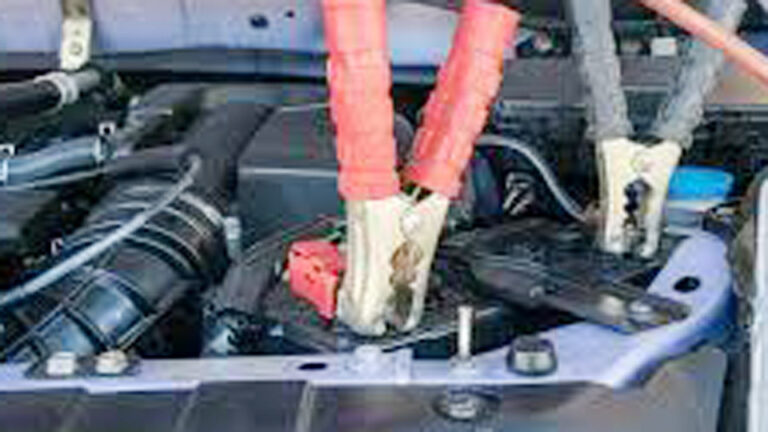
- Car Backup: Jump-starting with a dead battery repeatedly damages the alternator. Use proper maintainers.
- Solar System: A homeowner’s LiFePO4 bank showed low voltage due to a loose connection—simple fix but could have caused system failure.
- UPS for Home Office: Frequent power blips degrade batteries fast if not conditioned properly.
Taking Control of Your Batteries
After working through these steps and principles, you’ll spot issues early, extend life significantly, and make smarter choices when buying replacements.
Whether it’s reviving a laptop for another year, keeping your car reliable, or ensuring solar power during outages, the fundamentals are the same: clean connections, correct charging, temperature awareness, and proactive monitoring.
Invest in a good multimeter or battery analyzer. Measuring resting voltage under load tells you more than any dashboard icon. For lithium packs, track internal resistance over time—it predicts failure long before capacity drops noticeably.
FAQ
Why does my laptop say “plugged in, not charging” even with a good charger?
Often a driver glitch, EC issue, or battery protection kicking in due to heat or calibration error. Try the hard reset and Device Manager uninstall first.
How long should a laptop battery last before it won’t charge properly?
Typically 2-4 years or 300-500 cycles. Check health with battery report tools. Replacement is straightforward for most models.
Can I use a higher wattage charger on my laptop?
Yes, if voltage matches—laptops negotiate power safely. Lower wattage often causes slow or no charging under load.
Is it bad to leave my laptop plugged in all the time?
Modern systems handle it with smart charging, but enabling 80% limits and occasional full discharges helps longevity. Avoid constant 100% heat buildup.
What’s the best way to store a spare battery?
Cool, dry place at around 50% charge. Check voltage every few months and top up if needed. Avoid full charge or full discharge for long storage.