How to Display Apple Watch Battery on iPhone Easily
You glance at your wrist and notice your Apple Watch battery is running low, but your iPhone is already in your hand. Instead of raising your wrist or opening another app, it would be much easier to check the battery level right from your phone.
If you’ve been wondering how to display Apple Watch battery on iPhone, you’re not alone—it’s one of the most common questions I hear from Apple Watch users.
I’ve helped friends and family set up this feature more times than I can count, and the confusion usually comes from not knowing where Apple hides the battery information. Many people assume it’s available by default, while others spend time searching through Settings without finding the answer.
Displaying your Apple Watch battery on your iPhone is more than just a convenience. It helps you avoid unexpected shutdowns during workouts, phone calls, travel, or a busy workday. Knowing the battery level at a glance also makes it easier to plan charging and keep both devices ready when you need them most.
I’ll walk you through the exact steps to show your Apple Watch battery on your iPhone, explain why the option may not appear on some devices, and share a few practical tips to make checking your battery status quick and effortless.
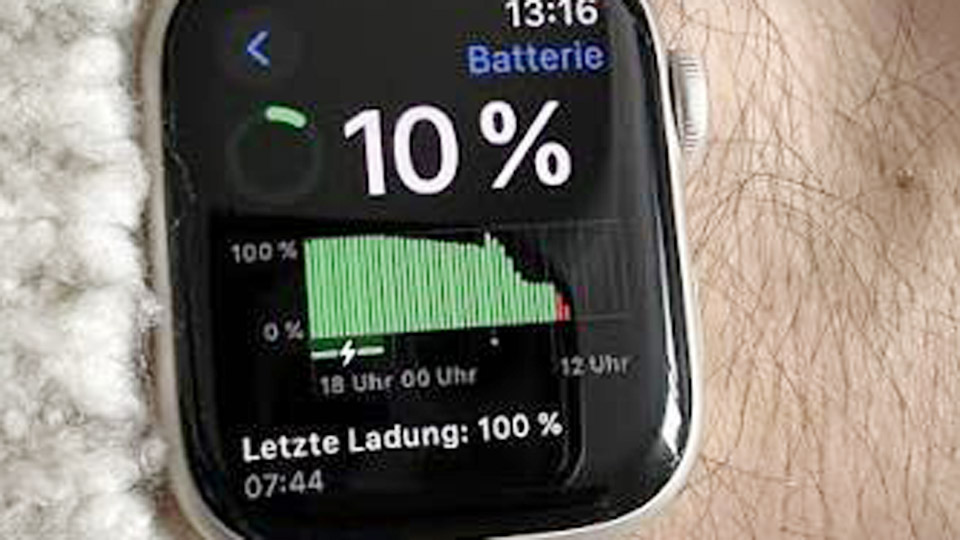
Image by minicenmwe.click
Why Monitoring Your Apple Watch Battery from iPhone Matters
Your Apple Watch pairs tightly with the iPhone, but its smaller battery drains faster under heavy use like GPS tracking, workouts, or always-on display. Seeing the percentage at a glance on the bigger iPhone screen helps you decide when to charge before it drops critically low—especially useful during travel or long days without easy access to a charger.
Common pain points include forgetting to charge overnight, unexpected drops during activities, or confusion when the watch isn’t showing clear indicators. Proper visibility reduces these issues, extends effective daily use, and avoids the frustration of a dead device when you need it most.
Checking Apple Watch Battery Basics on iPhone
The simplest method starts in the Watch app, which is pre-installed on your iPhone.
Open the Watch app → tap My Watch tab if needed → scroll to see the battery indicator at the top. It shows the current percentage for your paired watch. For more detail, swipe down in Control Center on iPhone (from top-right corner on Face ID models) and look for connected devices.
This gives an instant read without extra setup. Use it when you’re already in the app adjusting settings or complications.
Adding the Batteries Widget to Your iPhone Home Screen
Widgets are the most practical way for at-a-glance monitoring.
- Press and hold an empty area on your Home Screen until icons jiggle.
- Tap the + in the top-left corner.
- Search for Batteries or scroll to find it.
- Choose a widget size: small (single device focus), medium (multiple devices), or large (detailed view).
- Tap Add Widget, then position it and tap Done.
Once added, the widget displays your Apple Watch alongside iPhone, AirPods, or other accessories. It updates dynamically when the devices are in range and connected via Bluetooth.
Pro tip from experience: Place it on your main Home Screen or App Library for quick checks. If you have multiple watches (like a cellular model for workouts and another for daily), the widget can cycle or show specifics.
Lock Screen Widgets for Even Faster Access
iOS lock screen customization shines here for instant visibility without unlocking.
- Long-press the Lock Screen → tap Customize.
- Select the widget area below the clock.
- Add the Batteries widget.
- If multiple devices appear, tap the widget to customize and prioritize your Apple Watch (disable “Automatic” and select the watch manually).
This setup is gold when you’re grabbing your phone quickly—glance at the lock screen and know if your watch needs juice before heading out.
Using Control Center and Other Quick Views
Swipe down from the top-right for Control Center. The battery icon area often includes connected devices. Tap any percentage shown for expanded details.
In the Watch app itself, deeper insights appear under settings. For historical usage, open Settings > Battery on the Apple Watch or check paired data on iPhone.
Troubleshooting When the Apple Watch Battery Doesn’t Show on iPhone
Sometimes the display vanishes after updates or glitches. Here’s what fixes it based on common scenarios:
- Ensure pairing and proximity: Both devices need to be nearby with Bluetooth and Wi-Fi enabled. Restart both if needed.
- Update software: Go to iPhone Settings → General → Software Update, and on Watch via the Watch app. Newer watchOS/iOS versions refine battery reporting.
- Widget refresh issues: Remove and re-add the Batteries widget. For lock screen, edit and reselect devices.
- Reset sync: Unpair and repair the watch (back up first). This resolves deeper communication hiccups.
- Background app refresh: Settings → General → Background App Refresh → ensure it’s on for Watch app.
In my experience with connected devices, clearing cache-like issues by restarting or toggling Airplane Mode briefly often restores visibility fast.
Understanding Apple Watch Battery Health and Longevity
Like lead-acid or lithium batteries in vehicles and solar setups, Apple Watch uses lithium-ion tech with its own degradation curve. Capacity naturally drops over time—typically noticeable after 1-2 years of heavy use.
Check health: On the Watch, go to Settings > Battery. Look for Maximum Capacity percentage. If it falls significantly, optimize usage.
Real-world factors affecting lifespan:
- Frequent full discharges.
- Extreme temperatures (avoid leaving in hot cars or freezing conditions).
- Always-on display and heavy GPS.
- Outdated firmware.
Maintenance parallels to other batteries:
- Charge regularly but avoid constant 100% if possible—lithium-ion likes partial cycles.
- Use the official magnetic charger for proper voltage management.
- Store at around 50% charge if not using for weeks.
Optimizing Battery Life: Practical Habits That Work
To make monitoring worthwhile, extend runtime:
- Enable Low Power Mode when needed: Swipe to Control Center on Watch → tap battery percentage → toggle it. This cuts background processes.
- Manage complications and notifications wisely—fewer pings mean less drain.
- Turn off unnecessary features like wrist raise in quiet settings.
- For workouts, use power-efficient modes or pair with iPhone for processing.
Users in solar/off-grid scenarios or with power tools often appreciate these tweaks, treating the watch like any portable power source.
Comparing Battery Monitoring Across Devices
While this guide focuses on Apple Watch, the same Batteries widget handles iPhone, AirPods, and more. It’s more integrated than checking separate apps for car key fobs or other gadgets.
Pros of Apple ecosystem monitoring:
- Seamless updates.
- Visual graphs.
- Multi-device view.
Cons:
- Requires proximity for real-time data.
- Limited customization compared to some third-party options (though Apple prioritizes privacy).
Battery Types and Tech Context
Apple Watch batteries are compact lithium-ion, optimized for high cycle life but sensitive to heat and over-discharge—similar principles to LiFePO4 in deep-cycle solar but scaled down. Voltage management is handled internally, but understanding general lithium best practices (correct charging current, avoiding deep drains) applies.
In cars, we test voltage under load; here, the iPhone gives usage graphs that show drain patterns from apps or features.
Step-by-Step: Full Setup for Daily Reliability
- Pair your watch if not already.
- Add Batteries widget to Home and Lock Screen.
- Enable percentage views where possible.
- Set charging reminders or routines (charge while you shower or at your desk).
- Monitor weekly for unusual drain and investigate apps.
This routine prevents 90% of battery-related surprises.
Common Mistakes and How to Avoid Them
- Ignoring software updates → leads to inaccurate reporting or faster drain.
- Relying only on the watch face → easy to miss when busy.
- Overlooking temperature effects → heat accelerates degradation.
- Mixing chargers → use Apple-certified to prevent issues.
- Not restarting devices periodically → sync glitches build up.
Professionals in repair or tech fields know that consistent small habits outperform one-time fixes.
Real-World Usage Scenarios
- Daily commute: Check lock screen widget before leaving—charge if below 30%.
- Outdoor activities: Monitor during hikes; Low Power Mode preserves for emergency calls.
- Travel: Widget on iPhone home screen helps manage across time zones.
- Workshops/garage: Keep phone visible while watch tracks activity without frequent glances.
I’ve seen similar patterns with vehicle batteries—proactive monitoring saves time and money.
Advanced Tips for Power Users
Customize widget stacks for rotation. Use Focus modes that adjust watch behavior. For deeper diagnostics, note usage graphs in Settings to correlate with specific activities.
If managing multiple Apple devices, the Batteries widget becomes your central dashboard.
Taking Care of Your Setup Long-Term
Treat connected batteries like any system: clean contacts, update firmware, and cycle properly. This keeps performance high for years.
Periodically calibrate by running the watch down to low battery then charging uninterrupted to 100%. This helps the system gauge capacity more accurately, much like conditioning deep-cycle batteries.
You’re now equipped to stay ahead of battery issues. With these methods, your Apple Watch integrates better into your routine, reducing downtime and letting you focus on what matters—whether that’s work, adventures, or tinkering in the shop.
FAQ
How do I add Apple Watch battery to my iPhone lock screen?
Long-press the lock screen, tap Customize, add the Batteries widget, and select your watch specifically if needed. Disable automatic selection for priority.
Why isn’t my Apple Watch battery showing in the iPhone widget?
Check Bluetooth connection, restart devices, update iOS/watchOS, or remove/re-add the widget. Proximity and pairing status are key.
Can I see historical battery usage for Apple Watch on iPhone?
Yes—view graphs in the Watch app or directly on the watch under Settings > Battery. It shows recent drain patterns.
Does the Batteries widget work for multiple Apple Watches?
Yes, it displays paired devices. Use medium/large sizes or edit to focus on specific ones.
How accurate is Apple Watch battery percentage on iPhone?
Generally very reliable when connected, though minor variances occur with heavy use. Software updates improve precision.