How to Remove Apple Watch from Battery Reserve Fast
When your Apple Watch drops to a very low battery, it switches into Battery Reserve mode. In this state, most features are turned off to save power, showing only the time when you tap the screen. While this can help in emergencies, it can be confusing and frustrating when you want to use your watch’s full features again.
Many users don’t realize exactly how to exit Battery Reserve, what causes it, or how to avoid mistakes that could drain your battery faster next time. This guide walks you through the process, explains Battery Reserve’s details, and offers solutions if your Apple Watch won’t exit this mode.
Understanding Battery Reserve On Apple Watch
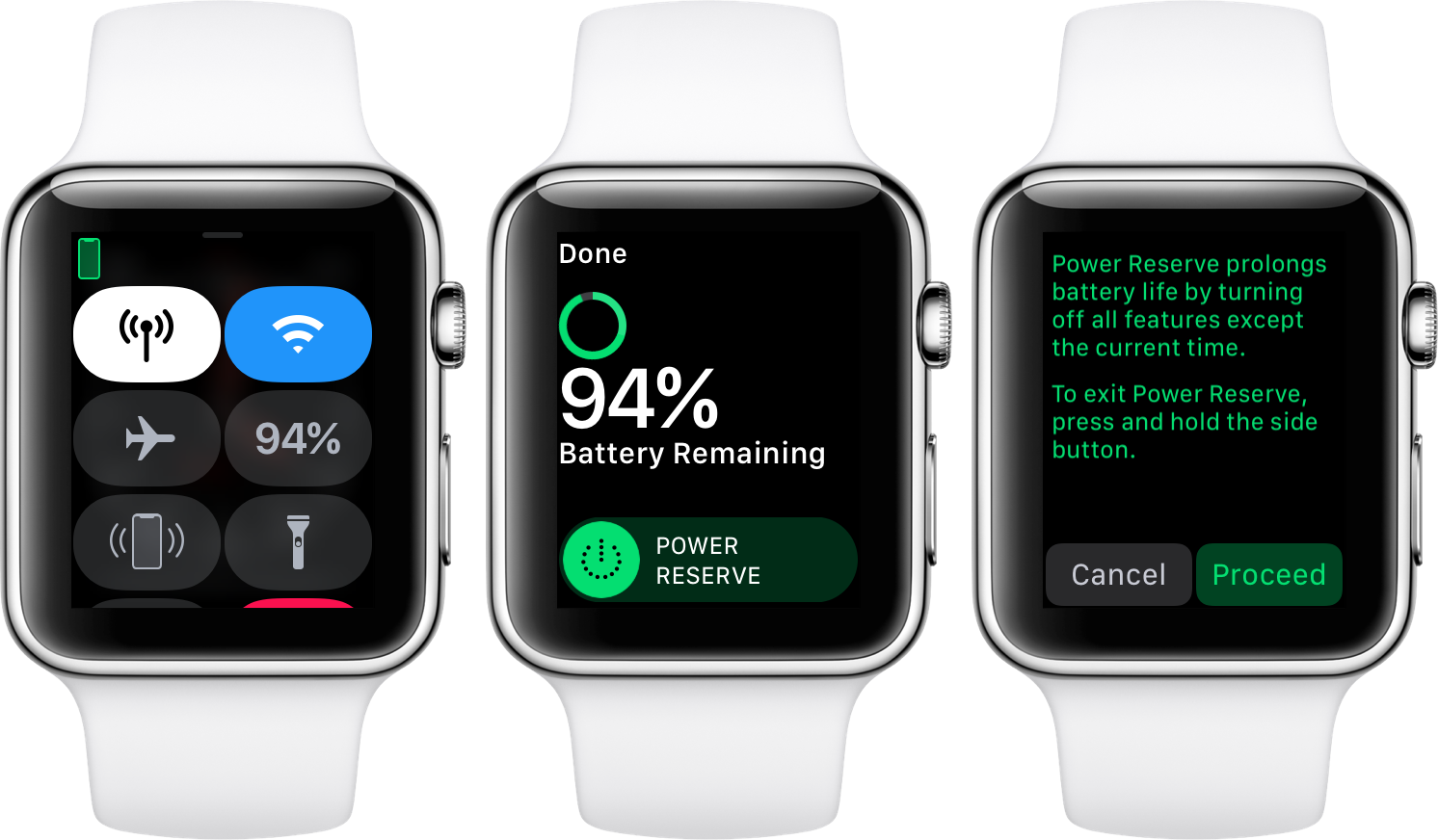
Battery Reserve (also called Power Reserve) is a special low-power state on the Apple Watch. When your battery level drops below 10%, your watch will suggest turning on Battery Reserve. If you ignore the suggestion, your watch will enter this mode automatically when the battery is almost empty.
In Battery Reserve, the Apple Watch:
- Only displays the time (press the side button to see it)
- Stops all wireless communication (no notifications, Bluetooth, or Wi-Fi)
- Turns off fitness tracking, heart rate monitoring, and apps
- Disables Siri, messages, and calls
- Does not sync with your iPhone
This mode is designed to give you a few extra hours to check the time before the watch shuts down completely.
Why Your Watch Enters Battery Reserve
Most often, Battery Reserve activates because the battery is critically low. Sometimes, users accidentally enable it when trying to save battery. It’s important to know that Battery Reserve is not the same as the regular Low Power Mode introduced in watchOS 9, which keeps most features running but saves power by reducing background activity.
How Battery Reserve Differs From Low Power Mode
Here’s a quick comparison between Battery Reserve and Low Power Mode:
| Feature | Battery Reserve | Low Power Mode |
|---|---|---|
| Time Display | Yes (only time shown) | Yes (full watch face) |
| Notifications | No | Yes (limited) |
| Bluetooth/Wi-Fi | No | Yes (reduced use) |
| Apps | No | Yes |
| Fitness Tracking | No | Yes (limited) |
Understanding these differences helps you manage your battery better and know what to expect.
How To Remove Apple Watch From Battery Reserve
Getting your Apple Watch out of Battery Reserve is simple, but there are steps and details you should follow to avoid issues. Here’s what you need to do:
1. Charge Your Apple Watch
The only way to exit Battery Reserve is to charge your watch. Find your Apple Watch charger and connect your watch to it. Make sure the charger is plugged into a working power source. Magnetic charging cables are standard, but you can also use charging docks or stands compatible with Apple Watch.
- Place your Apple Watch on the charger so the back of the watch connects with the charger’s center.
- You’ll see a small green lightning bolt if charging starts.
- If nothing appears, check your cable and power adapter.
2. Wait For Sufficient Power
Your watch will not exit Battery Reserve instantly. It needs enough power to restart normal functions. Usually, 2–5 minutes of charging is enough for the watch to boot up, but if the battery is deeply depleted, it may take longer.
- Do not try to force restart during this stage. Just let it charge.
- If the watch is very cold or hot, let it reach room temperature before charging.
3. Restart The Apple Watch
Once your watch has enough charge, remove it from the charger. Press and hold the side button (the lower button on the watch, not the Digital Crown) until you see the Apple logo. Release the button and wait for the watch to restart.
If the watch doesn’t turn on, place it back on the charger and wait another few minutes before trying again.
4. Confirm You’ve Exited Battery Reserve
When the watch restarts, you should see your regular watch face. You’ll receive notifications, and all features will work again. If you’re still seeing only the time, repeat the steps above.
What To Do If Your Apple Watch Won’t Exit Battery Reserve
Sometimes, your Apple Watch may not wake from Battery Reserve, even after charging. Here’s how to troubleshoot:
- Check the charger and cable: Try using another charger or cable if possible.
- Clean the back of the watch and charger: Dirt or residue can block charging.
- Check for debris in the charging port (if using a dock): Remove any obstructions carefully.
- Try a different power adapter or outlet: Sometimes the problem is with the wall plug.
- Force restart the watch: If charging doesn’t help, press and hold both the side button and the Digital Crown together for at least 10 seconds, until you see the Apple logo.
If the watch still won’t turn on, contact Apple Support or visit an Apple Store for hardware inspection.
Common Mistakes And Misunderstandings
New Apple Watch owners often make these mistakes when dealing with Battery Reserve:
- Thinking a single button press will exit Battery Reserve: Only charging the device will do this.
- Assuming the watch is broken: Many users worry their watch is dead when it’s just in Battery Reserve.
- Trying to use features without charging: No features except the time display work in Battery Reserve.
- Forcing a restart too soon: The battery needs enough charge to reboot.
If you keep these points in mind, you’ll avoid unnecessary stress and wasted time.
Tips To Prevent Frequent Battery Reserve Activation
With good habits, you can reduce how often your Apple Watch enters Battery Reserve. Here are some practical steps:
- Charge your watch daily: Most models last 18–36 hours per charge, so make charging a routine.
- Keep software up to date: Each watchOS update improves battery life and efficiency.
- Use Low Power Mode for long days: This feature, available on watchOS 9 and newer, lets you keep using most functions while saving energy.
- Reduce always-on display usage: Turning off Always-On Display can extend battery life by 15–20%.
- Limit background app refresh: Only allow important apps to refresh in the background.
- Close unused apps: Apps running in the background can drain power.
- Turn off unnecessary notifications: Too many notifications wake the screen and use battery.
- Avoid extreme temperatures: Cold and hot environments can reduce battery life.
Real-world Battery Life Example
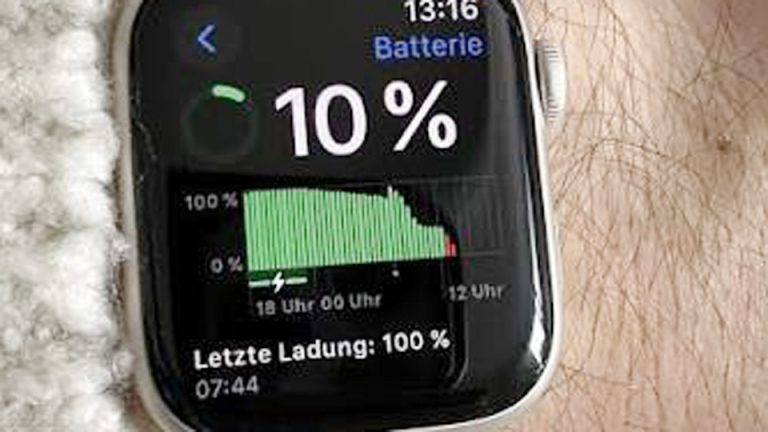
The Apple Watch Series 8 typically lasts 18 hours with regular use. If you start with a full charge at 8 AM, use workout tracking, and receive frequent notifications, you may reach Battery Reserve by late evening. Using the tips above, you can extend usage and avoid sudden shutdowns.
How Battery Reserve Affects Your Data And Settings
A common question is whether Battery Reserve changes any settings or erases data. The answer is no—Battery Reserve only limits features temporarily. When you exit this mode, all your apps, settings, and data are just as you left them. However, any fitness tracking, notifications, or activity during Battery Reserve will not be recorded.
What Happens To Health And Activity Data
When your Apple Watch is in Battery Reserve, it does not track steps, heart rate, or exercise. If you want a complete record of your activity, make sure to charge your watch before it enters this mode.

Credit: support.apple.com
How To Use Low Power Mode Instead Of Battery Reserve
Low Power Mode is different from Battery Reserve and is available on Apple Watch Series 4 and newer with watchOS 9 or later. You can enable it manually to keep most features running longer.
To use Low Power Mode:
- Swipe up on the watch face to open Control Center.
- Tap the battery percentage.
- Toggle on Low Power Mode.
This mode reduces background activity, disables the always-on display, and limits some sensors, but you still get notifications and can use most apps.
Comparison: Battery Reserve Vs Low Power Mode Vs Normal Use
To understand the differences, here’s a summary:
| Mode | Features Available | Battery Life Extension | How to Exit |
|---|---|---|---|
| Normal Use | All features | Standard (18–36 hours) | N/A |
| Low Power Mode | Most features (reduced background activity) | Up to 36 hours | Toggle off manually |
| Battery Reserve | Time display only | 1–3 extra hours | Charge and restart |
How To Avoid Accidental Battery Reserve Activation
Some users accidentally trigger Battery Reserve by tapping the wrong prompt when the battery is low. If you see a warning that your watch is at 10%, you can choose “Dismiss” to stay in normal mode, or “Proceed” to enter Battery Reserve.
If you don’t want Battery Reserve, always select “Dismiss” and charge soon.
Credit: beautiful-baths.ca
Dealing With Persistent Battery Reserve Issues
If your Apple Watch keeps entering Battery Reserve too often, the battery may be aging or there may be a software problem. Here’s what you can do:
- Check Battery Health: On your iPhone, open the Watch app > My Watch > Battery > Battery Health. If Maximum Capacity is below 80%, battery performance is reduced.
- Update watchOS: Software bugs can drain the battery. Install the latest updates.
- Unpair and re-pair your watch: Sometimes a fresh setup fixes battery problems.
- Reset settings: Go to Settings > General > Reset > Reset All Settings.
- Contact Apple Support: If nothing helps, you may need a battery replacement.
Apple’s Battery Service Policy
Apple covers battery replacements under warranty if the battery is defective. Out-of-warranty battery service costs vary by model. For up-to-date service information, visit the Apple Support Watch Service page.
Charging Tips For A Healthy Apple Watch Battery
To make your battery last longer and avoid Battery Reserve:
- Charge your watch daily before it drops below 20%.
- Avoid charging in extreme temperatures (below 32°F or above 95°F).
- Use certified Apple chargers to prevent charging errors.
- Don’t let the battery stay at 0% for long; deep discharges can shorten battery life.
Apple Watch Models And Battery Reserve Behavior
Battery Reserve works similarly on all Apple Watch models, but battery size and efficiency have improved over the years. Here’s a comparison of typical battery life:
| Apple Watch Model | Typical Battery Life | Battery Reserve Time |
|---|---|---|
| Series 3 | 18 hours | 1–2 hours |
| Series 5 | 18 hours | 1–2 hours |
| Series 7 | 18–20 hours | 2 hours |
| Series 8 | 18–36 hours (with Low Power Mode) | 2–3 hours |
| Ultra | 36–60 hours (with Low Power Mode) | 3 hours |
These numbers are estimates; actual times depend on usage, settings, and age of the battery.
Non-obvious Insights For Battery Reserve Users
Many guides skip these advanced tips, but they make a real difference:
- Always keep your iPhone nearby when charging the watch after Battery Reserve. Sometimes, the watch needs to reconnect with the iPhone to fully restore notifications and features.
- If the watch gets stuck at the Apple logo after charging, try placing it on the charger and holding both the side button and Digital Crown for 20 seconds. This often forces a deeper reset than a regular restart.
- Third-party watch faces or apps may drain the battery faster, increasing Battery Reserve frequency. Stick to Apple’s built-in faces for better battery life.
- Fitness tracking resumes automatically after exiting Battery Reserve, but you may need to open the Activity app to sync recent data.
Frequently Asked Questions
Why Does My Apple Watch Keep Entering Battery Reserve Even When I Charge It Regularly?
If your watch enters Battery Reserve often, your battery may be aging and holding less charge. Check battery health in the Watch app on your iPhone. Also, heavy use of apps, workouts, or frequent notifications can drain your battery quickly.
Software bugs can also cause sudden drops—keep your watch updated.
Can I Force My Apple Watch Out Of Battery Reserve Without Charging It?
No, the only way to exit Battery Reserve is to charge your watch. Pressing buttons or restarting will not work unless the battery has enough power. Even a short charge (2–5 minutes) is usually enough, but a deeply drained battery may need more time.
Will I Lose Data If My Apple Watch Stays In Battery Reserve Overnight?
No, you won’t lose your data, apps, or settings. However, your watch will not track steps, workouts, or health data while in Battery Reserve. That period will show as “no data” in your Activity and Health apps.
How Can I Tell If My Charger Or Cable Is The Problem?
If your watch doesn’t exit Battery Reserve after charging, try a different charger, cable, or power adapter. Clean the back of the watch and the charger to remove dust or debris. If it still doesn’t work, try charging another Apple Watch with your cable to see if the problem is with the accessories.
Is Battery Reserve The Same On All Apple Watch Models?
The basic Battery Reserve function (showing only the time and disabling all features) is the same on all models. However, newer models have bigger batteries and sometimes last longer before entering Battery Reserve. The process to exit Battery Reserve is also the same: charge the watch and restart.
When you understand how Battery Reserve works and how to exit it, you can use your Apple Watch with confidence. Avoiding frequent battery emergencies will help you get the most from your device every day. If problems persist, don’t hesitate to contact Apple for support or battery service.
With the right habits, your watch should keep you connected and healthy without interruption.