How to Remove Asus Battery Laptop Safely Without Damage
Many Asus laptop owners face a common issue: the battery loses power, stops charging, or simply needs replacement. Removing the battery is often the first step before troubleshooting, upgrading, or replacing it. But the process isn’t always obvious, especially with newer models and hidden battery compartments.
If you’re worried about damaging your laptop or unsure where to begin, this guide will walk you through every step, explain the tools you need, highlight safety tips, and address common mistakes. By the end, you’ll feel confident removing your Asus laptop battery—even if you’ve never opened a laptop before.
Understanding Asus Laptop Battery Types
Before you start, it’s important to know that Asus laptops use two main battery types:
- Removable batteries: Found in older or entry-level models. These batteries are easy to access—usually with a latch or clip on the bottom.
- Internal batteries: Common in newer models, like ZenBook, VivoBook, and ROG series. These require opening the laptop case.
Why does this matter? The removal process depends on the battery type. Knowing which you have saves time and prevents mistakes.
How To Identify Your Battery Type
Check for a visible battery compartment on the bottom of your laptop. If you see a rectangular panel with a release latch, it’s probably removable. If the bottom is a solid piece, it’s internal.
You can also check your laptop’s model number. For example:
- Asus X555: Removable battery
- Asus ZenBook UX430: Internal battery
If you’re unsure, search your model number plus “battery type” online or check the Asus support page.
Preparing For Battery Removal
Removing a battery isn’t just about unscrewing parts. Preparation is key. Here’s what you need:
Tools And Materials
- Small Phillips screwdriver (size #0 or #1)
- Plastic prying tool (for internal batteries)
- Anti-static wrist strap (optional but recommended)
- Clean, flat workspace
- Small tray or container for screws
Make sure your laptop is powered off and unplugged from the charger.
Backup And Safety
Always save your work and shut down the laptop properly. Removing the battery while the laptop is on can cause damage or data loss.
Wear an anti-static wrist strap if you have one. Static electricity can harm sensitive internal parts. If you don’t have a wrist strap, touch a metal object for a few seconds to discharge static before starting.
Removing A Removable Asus Laptop Battery
If you have a model with a removable battery, the process is fast and straightforward.
- Flip your laptop upside down on a soft cloth.
- Locate the battery latch. Most Asus laptops have either one or two latches.
- Slide the latch to unlock the battery. On some models, you need to hold the latch while removing the battery.
- Lift the battery gently out of its compartment.
That’s it. You can now replace or troubleshoot the battery. Make sure to align the battery contacts properly when re-installing.
Common Mistakes
- Trying to remove the battery without unlocking the latch.
- Forcing the battery out, which can break the contacts.
Removing An Internal Asus Laptop Battery
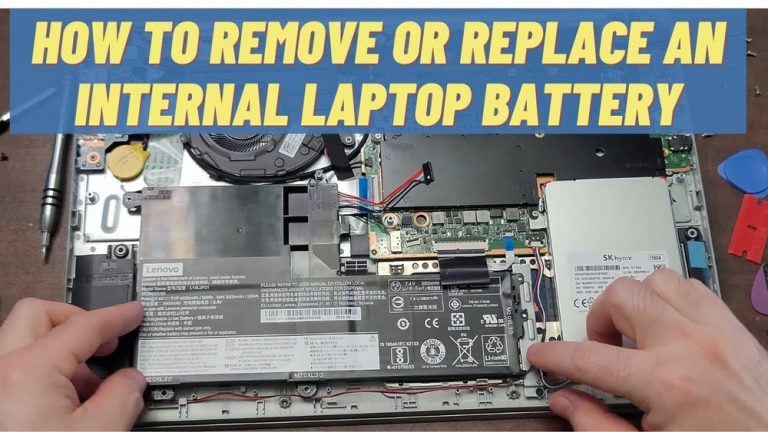
Internal batteries require more steps and care. Here’s how to do it safely.
Step 1: Power Down And Unplug
Make sure the laptop is completely shut down. Remove the charger and any connected devices.
Step 2: Remove The Back Panel
Most Asus laptops use small screws to secure the back panel. Use a Phillips screwdriver to remove all visible screws. Some models may have hidden screws under rubber feet or stickers.
Here’s a quick comparison of screw locations for common Asus models:
| Model | Visible Screws | Hidden Screws | Panel Removal Method |
|---|---|---|---|
| ZenBook UX430 | 10 | 2 (under feet) | Lift from edge |
| VivoBook S15 | 8 | 1 (under sticker) | Slide out |
| ROG Strix G15 | 12 | 0 | Lift with prying tool |
Use a plastic prying tool to gently separate the panel from the body. Metal tools can scratch or damage the case.
Step 3: Locate The Battery
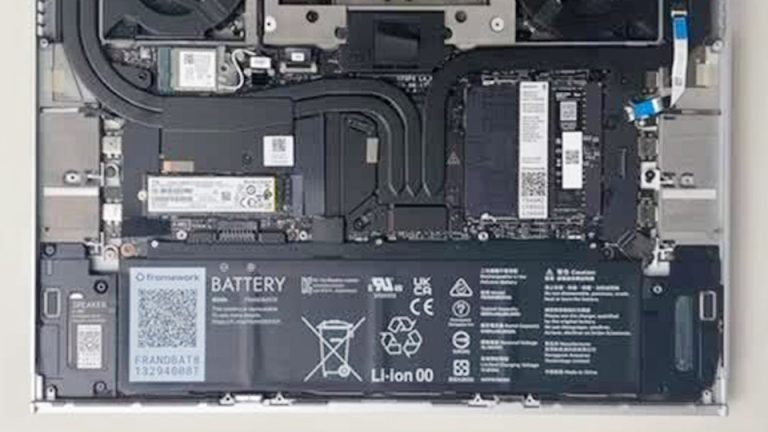
Once the panel is off, the battery is usually a large black rectangle secured with screws and connected by a cable.
Step 4: Disconnect The Battery Cable
Find the cable connecting the battery to the motherboard. Carefully unplug it by gently pulling the connector—not the wires.
Step 5: Remove Battery Screws
Unscrew all screws holding the battery in place. Keep them in a tray so you don’t lose any.
Step 6: Lift The Battery Out
Gently lift the battery from its compartment. Don’t force it—if it’s stuck, check for missed screws.
Step 7: Inspect And Clean
Check for dust or debris. Use a soft brush to clean the compartment if needed.
Practical Example: Asus Zenbook Ux430
For the ZenBook UX430:
- Remove 10 screws from the bottom
- Lift the panel using a prying tool
- Locate the battery (center area)
- Disconnect the cable
- Remove 4 battery screws
- Lift battery out
This process takes about 15–20 minutes for beginners.
Tips For Safe Battery Removal
- Use plastic tools to avoid scratching.
- Keep screws organized—some laptops use different sizes.
- Avoid touching the motherboard or other internal parts.
- If the battery is swollen or leaking, do not touch it with bare hands. Wear gloves and handle with care.
What To Do After Removing The Battery
After removal, you can:
- Replace with a new battery
- Clean the compartment
- Troubleshoot power issues
- Store the battery safely
If you plan to install a new battery, make sure it matches your laptop model. Installing the wrong battery can cause compatibility issues or damage.
Battery Replacement Tips
- Check the battery model number (printed on the battery)
- Buy from reputable sources
- Compare specs: Voltage, capacity, connector type
Here’s a quick comparison of battery specs for popular Asus models:
| Model | Battery Voltage (V) | Capacity (mAh) | Connector Type |
|---|---|---|---|
| ZenBook UX430 | 11.4 | 3960 | 3-pin |
| VivoBook S15 | 11.25 | 3650 | 3-pin |
| ROG Strix G15 | 15.4 | 4800 | 4-pin |

Credit: www.ifixit.com
Troubleshooting Common Issues After Removal
Sometimes, after removing or replacing the battery, you may face problems:
- Laptop won’t turn on: Check battery cable connection, reinstall battery, or try with charger only.
- Battery not detected: Make sure the new battery is compatible and properly connected.
- Loose panel: Check screw alignment, tighten screws gently.
If issues continue, consult Asus support or a professional technician.
When Should You Remove The Battery?
Removing the battery is recommended in these situations:
- Battery replacement: When the battery no longer holds charge or is swollen.
- Troubleshooting power problems: To check if issues are caused by the battery.
- Storage: If you won’t use the laptop for a long period, removing the battery can prevent damage.
- Upgrading internal components: For safety, always remove the battery before replacing RAM or SSD.
Risks And Precautions
Removing the battery isn’t risk-free. Here’s what to watch out for:
- Electrostatic discharge (ESD): Can damage internal parts. Use an anti-static wrist strap.
- Lost screws: Keep them organized.
- Damaged connectors: Always pull connectors, not wires.
- Swollen batteries: Handle with care; they can leak or explode.
If you notice a swollen battery, don’t try to remove it yourself. Contact Asus support or a professional technician.
How To Dispose Of Old Asus Laptop Batteries
Laptop batteries are hazardous waste. Never throw them in the trash. Instead:
- Check local electronics recycling centers.
- Some stores, like Best Buy, accept old batteries.
- Asus has recycling programs—check their official site for info.
Proper disposal protects the environment and prevents fires.
Real-life Data: Battery Lifespan And Failure Rates
According to research, laptop batteries last between 2–4 years on average, depending on usage. Asus batteries have a failure rate of around 6% within the first two years, slightly lower than the industry average.
Swollen batteries are rare but can happen if the laptop is used in high temperatures or kept plugged in for long periods. If you notice physical changes, remove the battery and seek help.
Asus Battery Removal Vs Other Brands
How does Asus compare to other brands? Here’s a quick overview:
| Brand | Removable Battery | Internal Battery | Ease of Removal |
|---|---|---|---|
| Asus | Yes (older models) | Yes (newer models) | Moderate |
| HP | Yes (many models) | Yes (some models) | Easy to Moderate |
| Dell | Yes (older models) | Yes (newer models) | Moderate |
| Apple | No | Yes | Difficult |
Asus laptops are generally easier to service than Apple laptops, but newer models still require careful disassembly.
Non-obvious Insights For Beginners
- Hidden screws: Many Asus laptops hide screws under rubber feet or stickers. Missing these can damage the panel.
- Battery calibration: After installing a new battery, calibrate it by fully charging and discharging it once. This helps the laptop show correct battery life.
- Firmware update: Sometimes, installing a new battery requires a BIOS update for proper detection. Check Asus support for updates.
- Battery connectors: Some connectors have a locking mechanism. Always check for a small clip before pulling.
Expert Guidance: Avoiding Damage And Improving Longevity
If you want your new battery to last:
- Avoid keeping your laptop plugged in all the time. This can cause battery swelling.
- Use the battery between 20%–80% charge for best lifespan.
- Keep your laptop in a cool, dry place.

Credit: www.ifixit.com
Why Battery Removal Is Sometimes Necessary
Some people avoid removing the battery, hoping the laptop will work fine. But keeping a damaged or swollen battery inside can cause:
- Overheating
- Poor performance
- Safety risks (leaks, fire)
If your Asus laptop shows signs of battery failure, don’t delay removal.
Additional Help: Asus Support And Manuals
If you’re stuck, Asus provides official manuals and support. Visit their website, enter your laptop model, and download the user guide. These guides include diagrams and step-by-step instructions for battery removal.

Credit: www.reddit.com
Frequently Asked Questions
How Do I Know If My Asus Laptop Battery Is Removable Or Internal?
Check the bottom of your laptop. If you see a battery compartment with a latch, it’s removable. If the bottom is a single piece, it’s internal. You can also search your model number online or check the Asus support page.
Can I Remove The Battery While My Asus Laptop Is Plugged In?
No, always unplug the charger and turn off the laptop before removing the battery. Removing the battery while plugged in can cause electric shock or damage internal parts.
What Should I Do If My Battery Is Swollen?
If you see a swollen battery, do not touch it with bare hands. Wear gloves and remove it carefully. If you’re not confident, contact Asus support or a technician. Swollen batteries can leak or explode.
How Do I Safely Dispose Of My Old Asus Laptop Battery?
Take your old battery to a recycling center or electronics store. Never throw it in the trash. Asus has recycling programs, and some stores like Best Buy accept batteries for safe disposal.
Does Removing The Battery Void My Asus Laptop Warranty?
For most Asus laptops, removing the battery does not void the warranty. But if you damage internal parts during removal, the warranty may not cover repairs. Always follow official instructions and use proper tools.
Removing your Asus laptop battery is a straightforward process when you understand your device and follow the correct steps. Whether you need to replace a dead battery, troubleshoot power problems, or prepare your laptop for storage, careful battery removal protects your device and keeps it running smoothly.
By learning the differences between removable and internal batteries, preparing properly, and avoiding common mistakes, you can handle battery replacement confidently. If you ever feel unsure, remember that Asus support is available to guide you. The right approach keeps your laptop safe and ready for years of use.