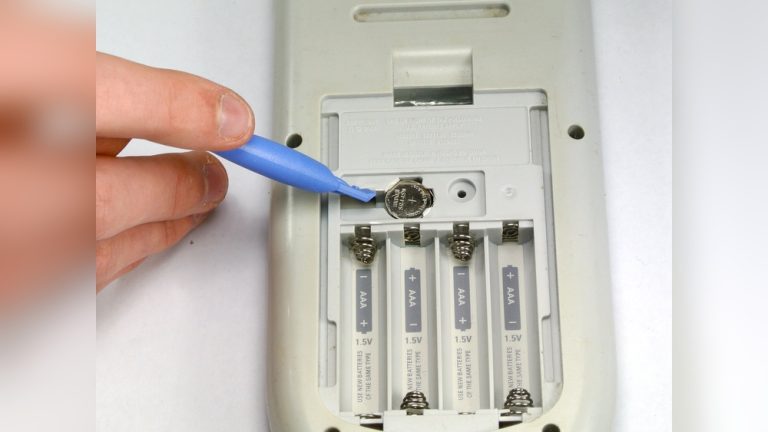
How to Disconnect Laptop Battery from Motherboard Safely
A laptop landed on my workbench recently because it kept shutting down unexpectedly, even when it was plugged into the charger. Before replacing any parts or running advanced diagnostics, the first step was to disconnect the battery from the motherboard.
It’s a simple task when done correctly, but if you’re unsure how to disconnect laptop battery from motherboard, it’s easy to damage a delicate connector or create a short circuit.
Many people open a laptop expecting to swap a battery, upgrade the RAM, or replace the SSD, only to realize they don’t know the safest way to disconnect the battery cable. Pulling on the wires, using the wrong tool, or skipping basic safety precautions can turn a quick repair into an expensive mistake.
Knowing the proper way to disconnect the battery isn’t just about completing a repair—it’s about protecting the motherboard, preventing accidental electrical damage, and keeping both you and your laptop safe.
Whether you’re fixing a charging issue, replacing the battery, or performing routine maintenance, this is one step you shouldn’t rush.
I’ll show you exactly how to disconnect a laptop battery from the motherboard, explain the different connector types you may encounter, and share practical tips I’ve learned to help you avoid common mistakes and complete the job with confidence.
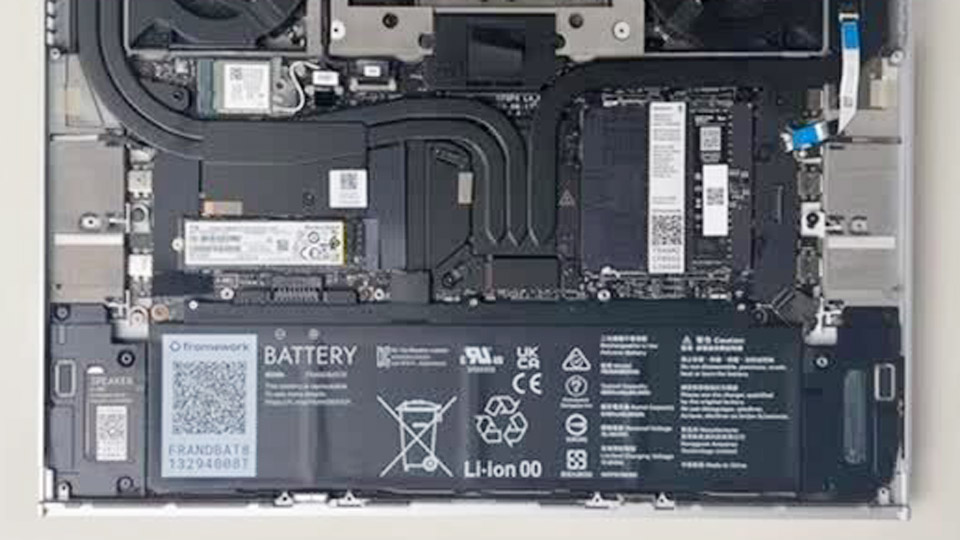
Image by frame.work
Why You Might Need to Disconnect a Laptop Battery
Laptops use integrated lithium-ion batteries that connect directly to the motherboard via a cable or connector. Over time, these batteries swell, fail to calibrate, or develop internal shorts. Disconnecting the battery resets the system, allows safe component replacement, and prevents power surges during repairs.
Common scenarios include:
- Replacing a swollen or dead battery
- Troubleshooting power issues or random shutdowns
- Cleaning dust from fans and heatsinks
- Upgrading RAM, SSD, or Wi-Fi cards
- Long-term storage to prevent deep discharge
Failing to disconnect properly can lead to motherboard damage, data corruption, or even fire risks from short circuits. I’ve seen beginners fry components by skipping this step.
Understanding Laptop Battery Types and Connections
Most modern laptops use lithium-ion (Li-ion) or lithium-polymer (LiPo) batteries. These are lightweight, high-energy-density packs with built-in protection circuits.
Unlike lead-acid batteries in cars, they operate at higher voltages (typically 7.4V to 14.8V nominal for multi-cell packs) and require precise management.
The battery connects to the motherboard through a small plug—often a multi-pin connector with positive, negative, and communication lines for the Battery Management System (BMS). The BMS monitors voltage, temperature, and charge state.
Key specs to know:
- Capacity: Measured in Watt-hours (Wh) — common ranges are 40-100Wh for laptops.
- Voltage: Check the label; forcing wrong voltage during testing can destroy cells.
- Chemistry: Li-ion is dominant; avoid confusing with older NiMH packs.
Step-by-Step: How to Disconnect Laptop Battery from Motherboard
Safety first: Work on a non-static surface. Use an anti-static wrist strap if possible. Power off the laptop completely, unplug the charger, and remove any peripherals.
Prepare your workspace and tools
You’ll need a Phillips screwdriver (usually #0 or #1), plastic pry tools or guitar picks to avoid scratches, and a container for screws. Have your replacement battery ready if swapping.
Remove the bottom panel
Flip the laptop over. Most models have 8-15 screws. Some hide under rubber feet—gently peel them up. Note screw lengths; they vary by position. Keep a photo or diagram handy.
Locate and disconnect the battery
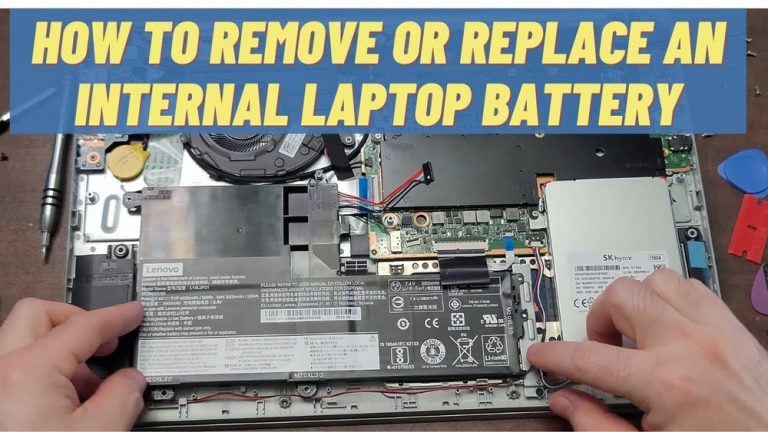
Once the panel is off, find the rectangular battery pack, usually near the center or bottom. Look for the cable running to the motherboard.
Gently pull the connector straight up or slide it sideways, depending on the design. Never yank wires—pull from the plastic housing. Some batteries have a locking tab; release it first.
Remove mounting screws or adhesive
The battery may be secured with 2-6 screws or strong adhesive tape. Remove screws and carefully pry the battery free. For adhesive, use heat from a hairdryer on low or plastic tools to loosen.
Verify disconnection
Press and hold the power button for 30-60 seconds to discharge residual power. This step is crucial for clearing capacitors on the motherboard.
Reassembly is the reverse. Ensure the connector clicks firmly into place. Test before fully screwing the panel down.
Pro tip from the workshop: If the connector is stubborn, use a plastic tool to rock it gently side-to-side while lifting. Metal tools risk shorting pins.
Battery Types Across Applications: What You Need to Know
While laptop batteries are lithium-based, broader knowledge helps when working on multiple systems.
Lead-Acid (Flooded, AGM, Gel):
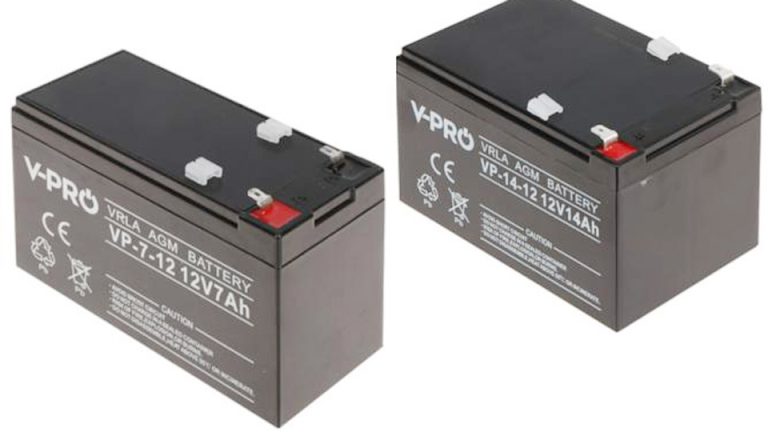
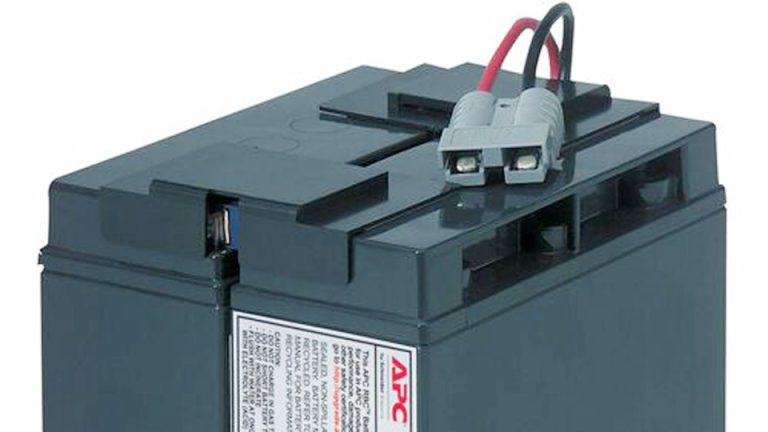
Traditional car and UPS batteries. Robust but heavy. AGM (Absorbed Glass Mat) handles vibration better for motorcycles and off-road vehicles. Voltage: 12V nominal. They tolerate overcharging better than lithium but sulfate if left discharged.
Lithium-Ion and LiFePO4:
Lighter, higher cycle life. LiFePO4 (Lithium Iron Phosphate) is safer for solar and deep-cycle use—less prone to thermal runaway. Common in EVs, power tools, and high-end UPS systems. They require BMS protection and specific chargers.
Pros and Cons Comparison:
| Battery Type | Pros | Cons | Best For | Lifespan (cycles) | Cost per Wh |
|---|---|---|---|---|---|
| Flooded Lead-Acid | Cheap, widely available | Heavy, maintenance needed | Cars, basic UPS | 200-500 | Low |
| AGM/Gel | Vibration resistant, sealed | More expensive than flooded | Motorcycles, marine | 400-800 | Medium |
| Li-ion (laptop/EV) | High energy density, light | Sensitive to heat/cold | Laptops, portables, EVs | 500-1500+ | Higher |
| LiFePO4 | Very safe, long life, stable | Bulkier for same capacity | Solar, deep cycle, off-grid | 2000-5000+ | Medium-High |
Choose based on your needs. For solar storage, LiFePO4 wins on longevity despite upfront cost.
Charging Methods and Common Mistakes
Incorrect charging kills batteries faster than anything else. Lead-acid needs bulk, absorption, and float stages. Lithium prefers constant current/constant voltage (CC/CV) with temperature monitoring.
Correct voltage ranges:
- 12V lead-acid: Charge at 13.8-14.4V
- 3.7V Li-ion cells: 4.2V max per cell
- Laptop chargers: Use the exact OEM or high-quality replacement rated for your model
Real-world mistakes I’ve seen:
- Leaving laptops plugged in 24/7 without calibration
- Using fast chargers on old lead-acid without monitoring
- Storing batteries at 100% or 0% charge
- Ignoring temperature—heat above 95°F (35°C) accelerates degradation
For laptops, calibrate every few months: Charge to 100%, use until 5-10%, then recharge fully.
Battery Maintenance and Storage Best Practices
Maintenance extends life significantly.
- Routine checks: Inspect for swelling, leaks, or corrosion. Test voltage with a multimeter.
- Storage: For long-term, store lithium at 40-60% charge in cool (50-70°F), dry conditions. Lead-acid needs periodic top-off.
- Deep cycle systems: In solar setups, avoid discharging below 20-50% depending on chemistry to prevent sulfation or cell imbalance.
- Cleaning: Disconnect first, then use baking soda/water for lead-acid corrosion or isopropyl alcohol for electronics.
In off-grid homes, I recommend monthly equalization charges for lead-acid banks and firmware updates for smart lithium BMS.
Troubleshooting Battery Issues
Laptop won’t power on after disconnection: Double-check connector seating. Reset EC (Embedded Controller) by holding power button longer.
Swollen battery: Never force it back in. Replace immediately—pressure can damage internals.
Rapid drain: Could be software (background processes), faulty cells, or parasitic drain on the motherboard. Use tools like HWMonitor to diagnose.
For vehicles: A parasitic drain test involves disconnecting the negative terminal and measuring current (should be under 50mA).
Safety Considerations Every User Should Know
Batteries store significant energy. Lithium fires are hard to extinguish—use Class D extinguishers or sand. Never puncture cells. Wear eye protection when working near lead-acid due to acid risk.
In EVs or high-voltage systems, professional help is mandatory beyond basic 12V accessories. For laptops and small electronics, the risks are lower but still real.
Real-World Usage Examples
- Cars/Motorcycles: Disconnecting the negative terminal first prevents shorts. Essential before welding or audio upgrades.
- Solar/Off-Grid: Proper disconnection during maintenance prevents inverter damage. I once helped a homeowner whose LiFePO4 bank was out of balance—individual cell monitoring saved the pack.
- UPS Systems: Critical for data centers or home offices. Test under load quarterly.
- Power Tools: Lithium packs benefit from proper storage between uses to maintain runtime.
Choosing the Right Battery and Compatibility Tips
Match voltage, capacity, and connector type exactly. For laptops, OEM or reputable third-party with matching Wh rating. Cheap generics often lack proper BMS and fail quickly.
Consider total cost of ownership: A premium LiFePO4 solar battery costs more initially but pays back in cycles and reliability.
Practical Recommendations for Longevity
- Use smart chargers with automatic shutoff
- Keep firmware/BIOS updated for better power management
- Avoid extreme temperatures during operation and storage
- Invest in a good multimeter and learn basic voltage testing
- For fleets or multiple devices, track usage in a simple log
One pro-level tip: When disconnecting any battery for storage or repair, measure and record resting voltage first. This baseline helps diagnose degradation later and prevents guessing games months down the line.
By following these practices, you’ll handle battery issues confidently across devices. Whether you’re pulling a laptop battery to swap an SSD or maintaining a weekend warrior’s solar setup, the fundamentals remain the same: safety, precision, and respect for the chemistry.
FAQ
How long does it take to disconnect a laptop battery?
Usually 10-30 minutes for most models. Thinner ultrabooks or those with glued components take longer. Practice on an older machine first.
Can disconnecting the battery damage my laptop?
Not if done correctly. The main risks come from forcing connectors, using metal tools near live circuits, or improper reassembly. Always discharge residual power afterward.
Should I disconnect my laptop battery when using it plugged in?
Not necessary for modern systems with good power management, but removing it can reduce heat buildup and extend battery life if you use the laptop as a desktop regularly. Reinstall occasionally for calibration.
What if the battery connector won’t come out easily?
Stop and check for locking tabs or clips. Gentle wiggling with plastic tools works. If stuck, consult your model’s teardown guide (without external links here—search your exact model + “battery replacement”).
How often should I replace a laptop battery?
Every 2-4 years or when capacity drops below 70-80% of original. Symptoms include rapid drain, swelling, or failure to charge fully. Test with built-in diagnostics or software tools.